USB-C-Switch Pro Cabling Guide
If you are not specifically testing both orientations of a USB-C port, use standard USB-C cables rather than UOCs (see below).
Use a standard USB-C cable to connect the test runner or Control PC to the Control Port.
The total length of the Common–Mux path (Common cable + Mux cable) should be below the nominal limits for the highest USB speed in use:
USB Speed |
Approximate Maximum Total Cable Length (Common + Mux) |
|---|---|
USB 2.0 |
5 m |
USB 5Gbps |
2–3 m |
USB 20Gbps |
1 m |
USB 40Gbps |
0.8–1 m |
For USB4 40Gbps and Thunderbolt links, Acroname recommends using 0.3 m 80 Gbps-rated cables.
Orientation Matching
In normal operation, a USB-C cable can be plugged in either orientation; hosts and devices then negotiate the orientation and remap pins internally. Standard USB-C cables pass CC and USB2 D+/D- signals only from one side of the connector.
Because the USB-C-Switch Pro joins two cables mid-connection (Common-to-Mux), the orientations of the two cables must match for CC and USB2 to pass through.
If cable orientations do not match:
CC communication fails: no USB-PD negotiation
USB2 D+/D- are blocked: no USB 2.0 or HS signaling
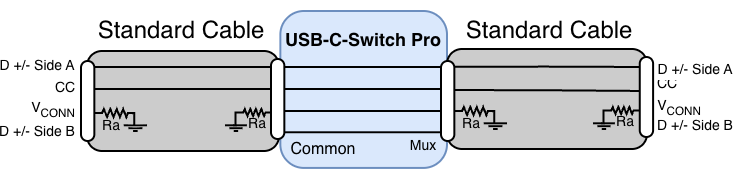
Standard cables, orientation matched (all signals pass).
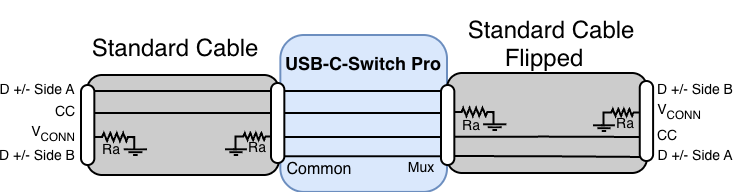
Standard cables, orientation flipped (CC and HS blocked).
In all cases — including with UOCs — these signals pass through in both orientations: VBUS, SS lanes, SBU, and GND. (Omitted from the diagrams for clarity).
Port Testing: UOCs
Acroname Universal Orientation Cables (UOCs) are nonstandard USB-C cables designed to automate testing of both sides of a USB-C receptacle when used with the USB-C-Switch Pro. These cables pass VCONN and CC signals without the standard Ra termination.
Each Port Under Test (PUT) connects through a UOC.
The testing device connects using a standard cable.
The PUT may be connected to either the Common port or a Mux port, depending on the test flow.
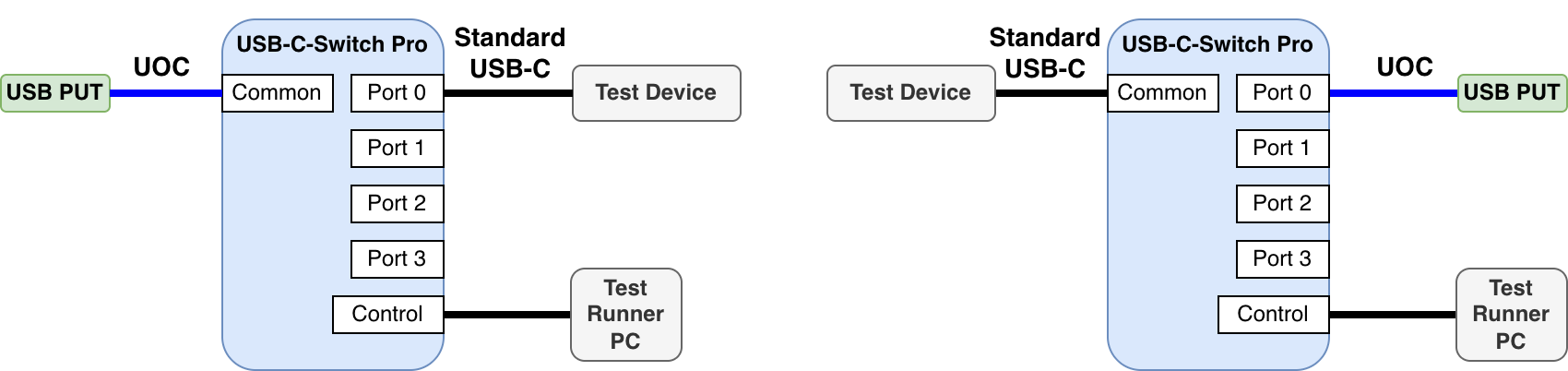
Connect the UOC to the Port Under Test (PUT)
UOC Selection
Device USB-C ports either short sides A and B USB 2.0 (HS) data lines or use a mux to keep the two sides electrically independent. Choose the UOC that matches your DUT port.
Two UOC cable types are included:
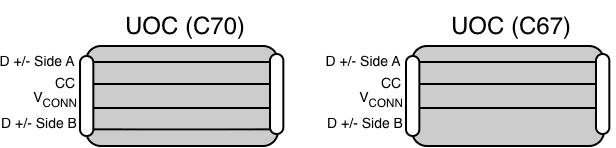
C70 — for muxed USB2 ports - Routes both CC lines and two independent HS pairs (for devices with independent A/B HS pins).
C67 — for shorted USB2 ports - Routes both CC lines and one shared HS pair (for devices that short HS A to B).
If C70 is used on a port that shorts HS A/B, the second HS pair in the cable acts as an antenna, leading to poor signal quality. Connecting C67 to a port with Muxed HS sides results in no USB 2.0 connection in one of the cable flip orientations.
UOC Connection Examples
Multiple PUTs, one testing device
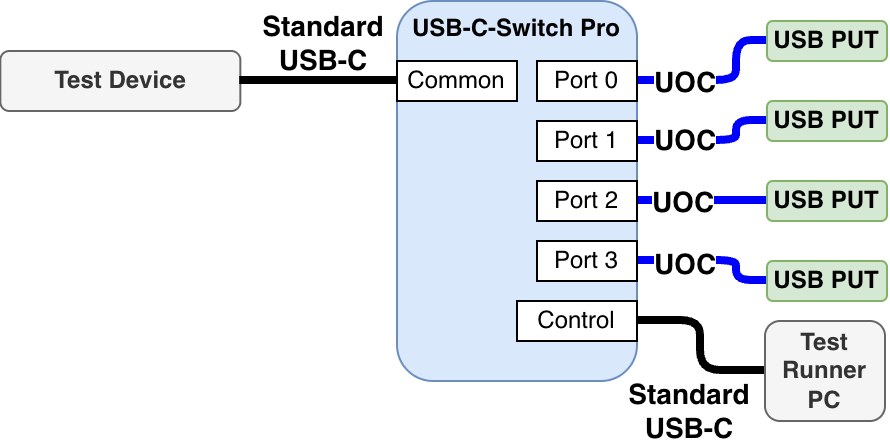
To test multiple DUT ports (or multiple DUTs) against a single tester:
Connect each PUT to a Mux port using the correct UOC.
Connect the testing device to the Common port using a standard cable.
Connect the test runner to the Control port.
One PUT, multiple testing devices

To test one PUT against multiple testers:
Connect the PUT via UOC to the Common port.
Connect each tester to the Mux ports with standard cables.
Connect the test runner to the Control port.
Any attached DUT or testing device may connect to the USB-C-Switch Pro Control Port and act as the test runner.