
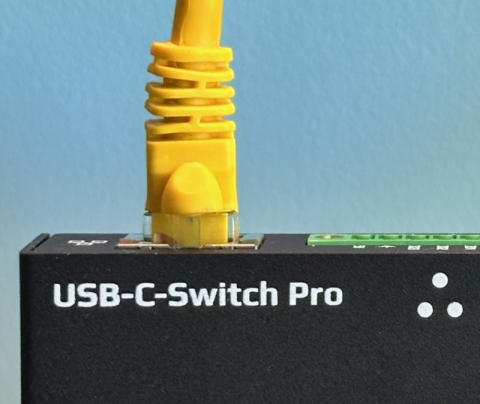
USB-C-Switch Pro and USBExt3c support management over a local-link Ethernet connection. For direct Ethernet control, connect the Acroname device to a dedicated Ethernet interface on the control computer, assign that interface a manual 192.168.44.x address, and connect to the device at its fallback address of 192.168.44.42.
Direct Ethernet connection
Connect the Acroname device to a dedicated Ethernet interface on the control computer.
Use a separate Ethernet adapter for the Acroname device to avoid conflicts with your normal network connection. The connection can be a single Ethernet cable or can pass through an Ethernet switch on the same local segment, but not through a gateway.
Set the computer's Ethernet interface to a manual IPv4 address on the 192.168.44.x subnet.
Choose any address in the range 192.168.44.x, except 192.168.44.42. Set the subnet mask to 255.255.255.0.
macOS
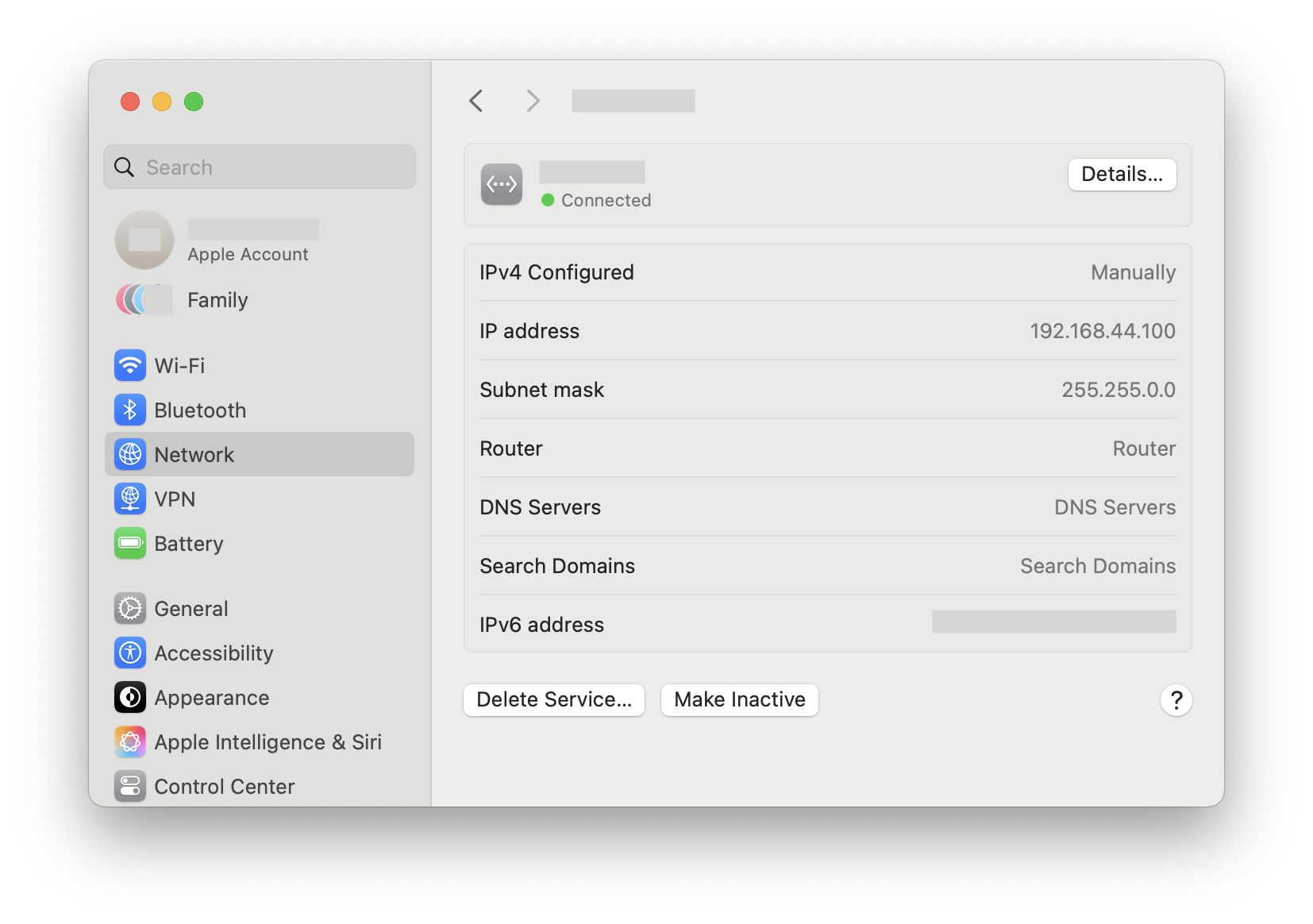
Open System Settings > Network. Select the Ethernet adapter you will use for the device and click Details.
Under TCP/IP, set Configure IPv4 to Manually, then enter:
- IP address: for example, 192.168.44.100
- Subnet mask: 255.255.255.0
Windows 11
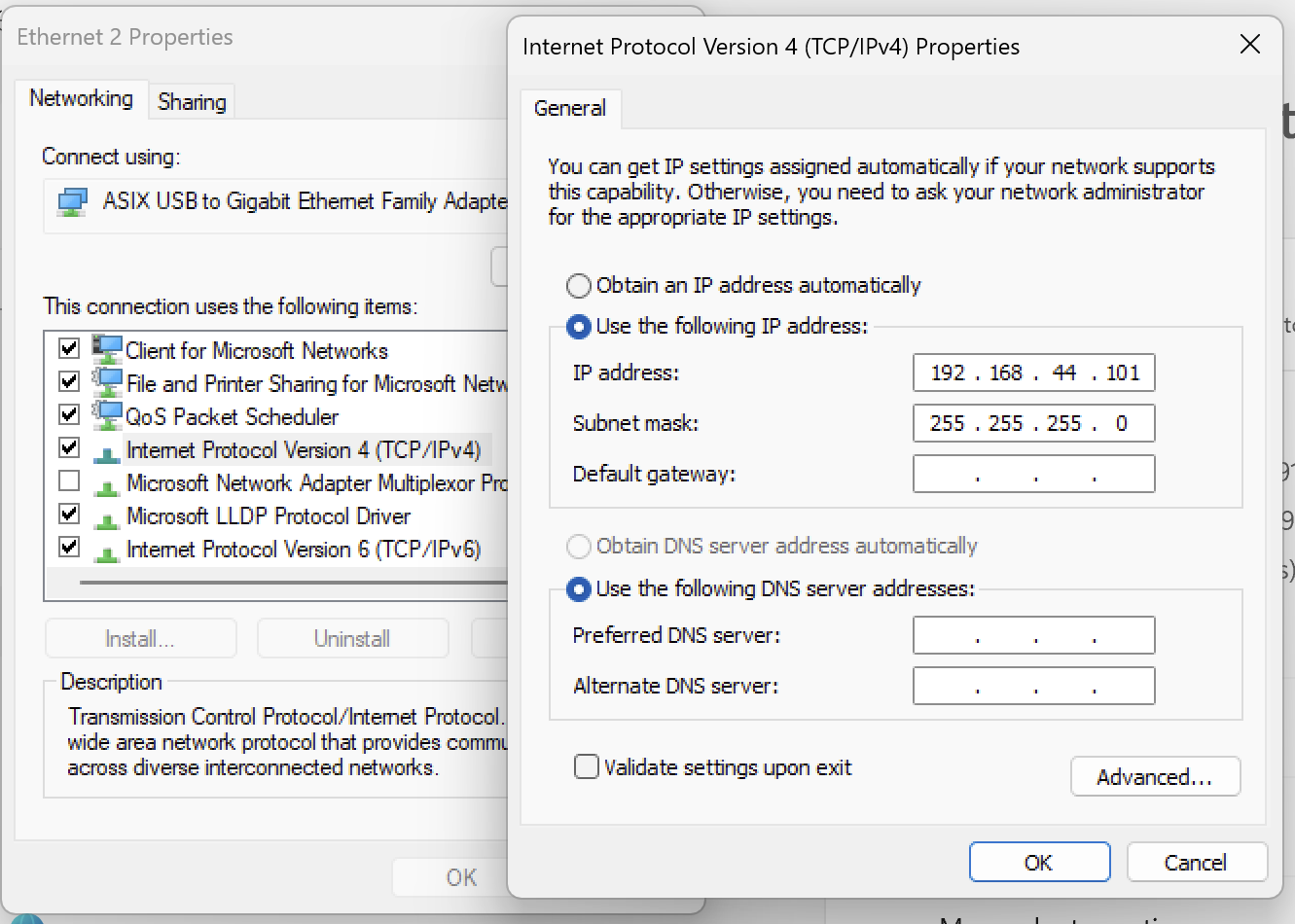
Open Settings > Network & internet > Advanced network settings > More adapter options. Right-click the Ethernet adapter and select Properties.
Select Internet Protocol Version 4 (TCP/IPv4), then click Properties. Choose Use the following IP address and enter:
- IP address: for example, 192.168.44.101
- Subnet mask: 255.255.255.0
Power the Acroname device.
If no DHCP server is present, the device falls back to 192.168.44.42 on the local link.
- Launch HubTool.
In HubTool, open Discovery and enable TCP/IP discovery.
Select the Ethernet interface by the IP address you configured in the previous steps. HubTool will then search that local link for compatible Acroname devices.
Find the device in the HubTool device list.
The device should appear in the lower-right pane with its serial number and a network icon.
Open the device.
Click the device entry to launch its control interface.
Troubleshooting
- Confirm that the computer interface is set to 192.168.44.x with subnet mask 255.255.255.0.
- Confirm that the selected interface in HubTool is the dedicated Ethernet adapter, not Wi-Fi or another NIC.
- Confirm that TCP/IP discovery is enabled.
- Make sure no other DHCP server is present on that local link if you expect the fallback address 192.168.44.42.
- Connect through the USB control port to confirm that the device is operational, then check the IPv4 address in the Ethernet tab.
Add New Comment